STYLEFORCE HELP / ACCOUNTS
Accounts and sign-in
Updated 23 October 2026. This guide covers customer accounts. Seller owners and staff use a separate sign-in.
One login, separate store accounts
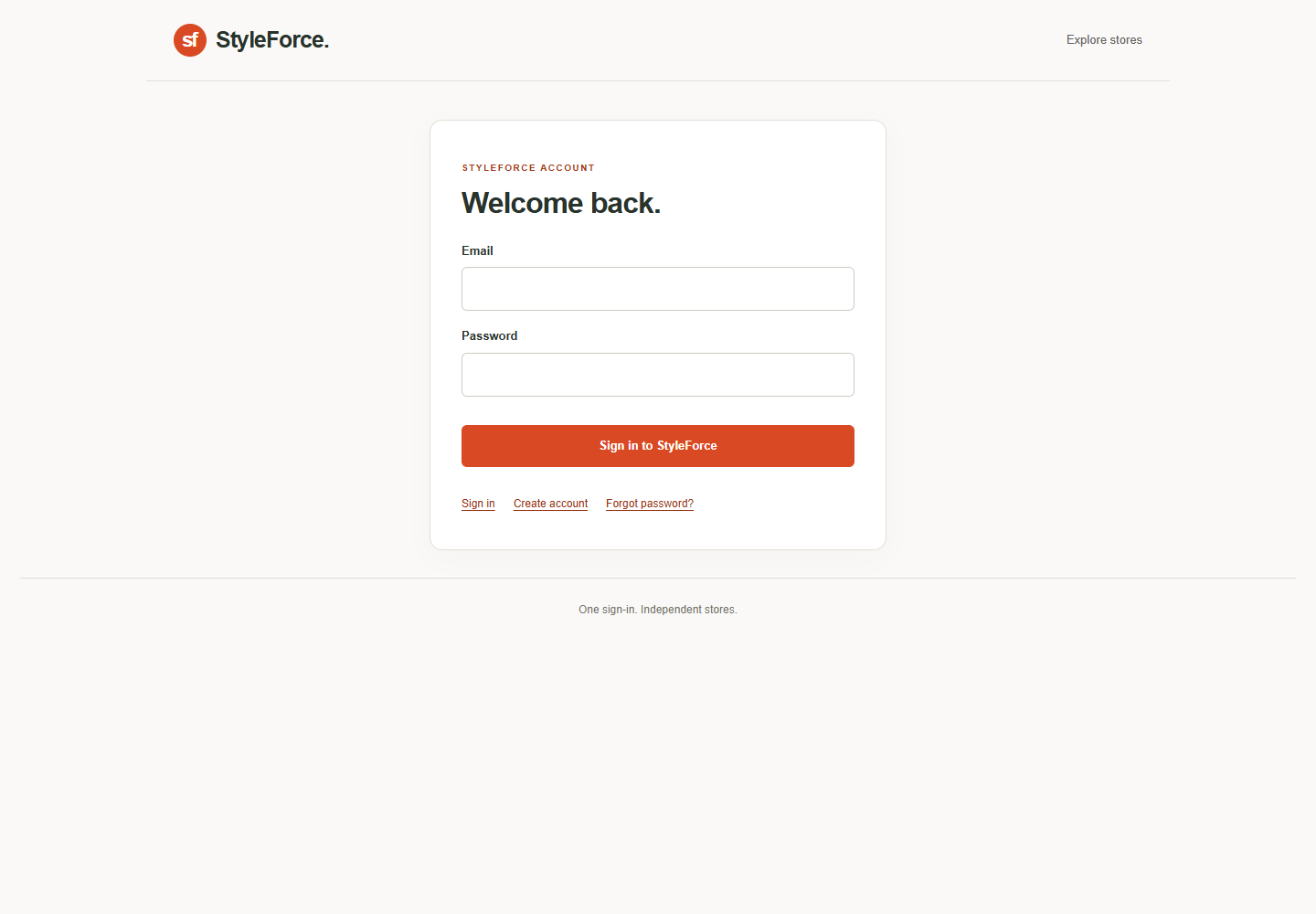
You can register directly at a store, register with StyleForce, or do both using the same email. The credentials and account records are independent. Using the same email does not connect accounts automatically.
| Account | How you sign in | What stays with it |
|---|---|---|
| StyleForce customer account | StyleForce email and password | Your central profile, optional address book and connected store accounts |
| Direct store account | That store's email and password | Its own store profile, addresses, cart and orders |
| Store account entered through StyleForce | Continue with StyleForce at a participating store | Its own store profile, addresses, cart and orders |
StyleForce entry does not require another store password. If you already selected a verified connected store account, entry reuses it. Otherwise, it creates a separate store customer identity. It does not automatically open an older direct account with a matching email.
Register and sign in
- Open the selected store and check its name and address.
- To use a direct store account, register or sign in on that store's customer page.
- To use central entry, open your StyleForce account, register or sign in, then use Continue with StyleForce at a participating store.
- Check the store and selected account before reviewing a cart or order.
Each store owner controls participation. If Continue with StyleForce is absent, use that store's direct customer sign-in. A password set at one store does not change your StyleForce password or another store's password.
Find purchases in an older account
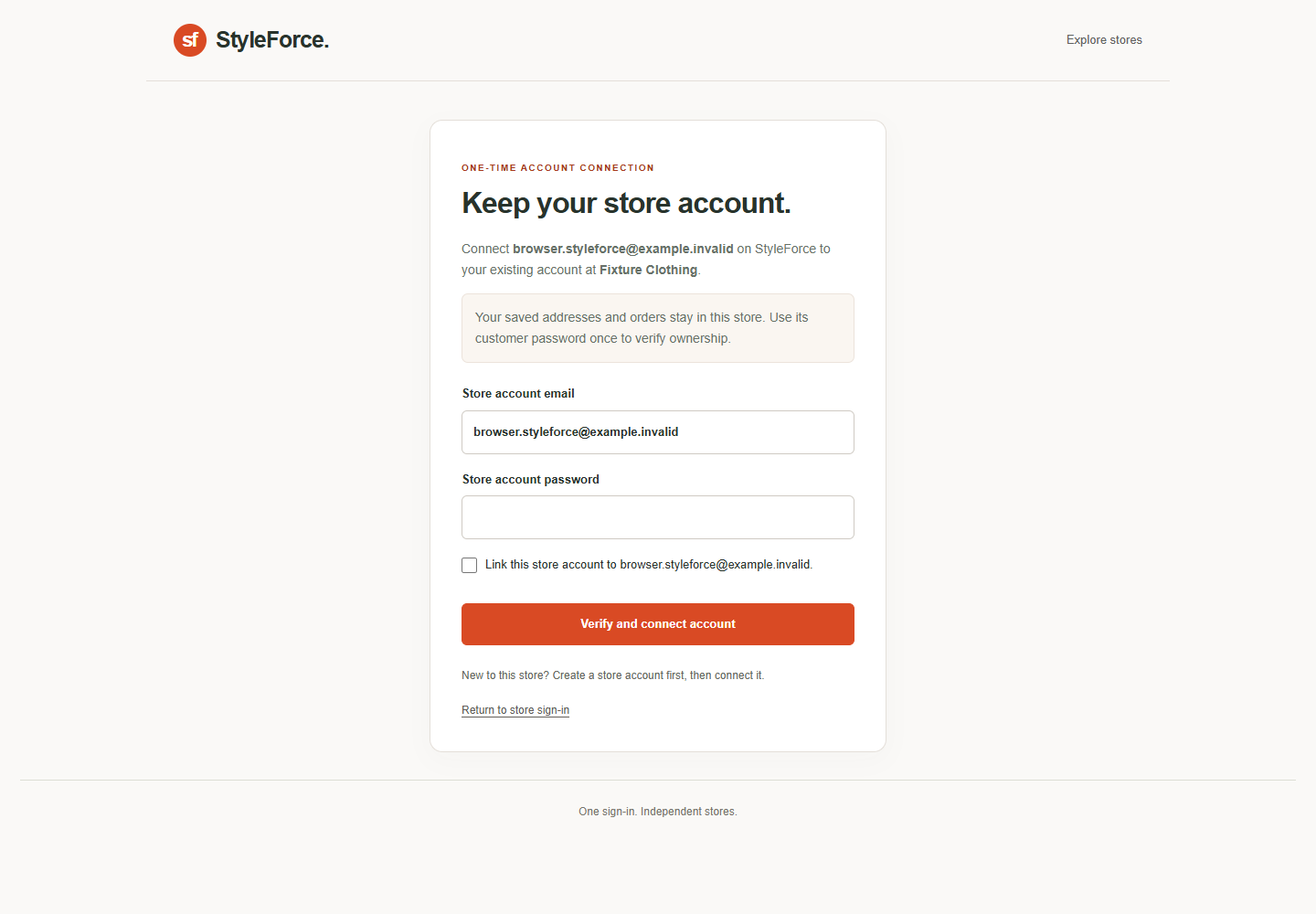
- Open Profile → Have orders in an older store account? → Connect an older store account.
- Sign in to the original store account and confirm its password.
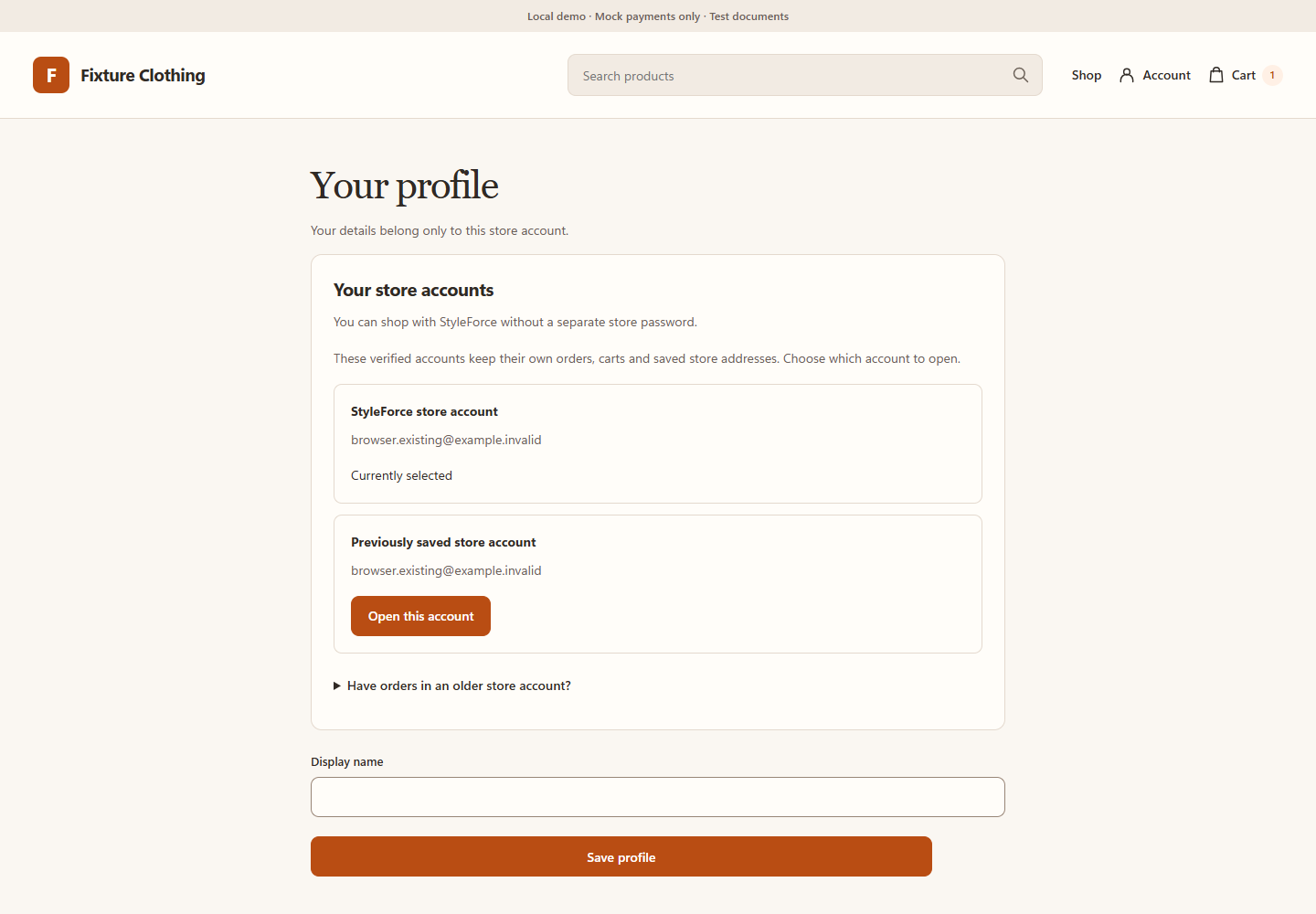
- After verification, open Your store accounts → Open this account to select it.
- Review the selected account's orders and cart.
Accounts are not merged. Orders, carts and saved store addresses remain with their original account. Switching is blocked while checkout is pending; complete or resolve it before switching. You can still sign in directly with the original store credentials.
Reuse an address deliberately
StyleForce offers a central profile and address book. Use a StyleForce address at checkout copies the address you select into a participating store. Saving an owned store address to StyleForce also requires confirmation.
Later edits do not synchronize other copies or change the address already accepted on an order. Contact the seller about an existing delivery.
Passwords, recovery and seller access
Keep passwords and recovery codes private. Do not paste them into support tickets. Sign out on shared devices.
Email/OTP recovery delivery is not currently enabled in the demo preview. Do not expect a recovery email from a disabled flow. Use only the recovery option actually offered by the selected store and contact its published support channel if you are blocked.
Customer sign-in never grants seller, staff or platform administration access. Seller owners and staff use their own credentials and authenticator verification. Enabling StyleForce customer entry does not replace seller security.
Continue with the customer guide or seller guide.